 Back
VMware Search
Smart search for VMware vRealize Operations
Designing a natural-language search with a query builder, so engineers can find any object or metric in their infrastructure using only the keyboard.
Project Details
- CLIENT
- VMware (cloud computing)
- FOCUS
- Advanced search & query building
- ROLE
- UX Designer
- USERS
- Technical teams / DevOps
- PLATFORM
- Enterprise web application
- SCOPE
- Interaction flows & UI states
Project Context
Finding information in an infrastructure platform is not always a simple name lookup. A user may know an object name, recognise a metric, or need every virtual machine that meets a condition.
My focus was the search experience: translating product requirements into interaction flows for direct lookup, guided query construction, filtering, and results. Search works across the whole platform and covers different kinds of data: virtual machines, dashboards, values, parameters and more.
Search Requirements
The product brief defined several search needs:
- Find objects by name or identifying attributes.
- Find dashboards by name, content, or associated users.
- Search for one object, a list of objects, or metrics across objects.
- Build conditions with keys, values, and operators.
- Offer relevant suggestions while typing.
- Support query construction from the keyboard.
- Prioritise relevant results and preserve object context.
Design Approach
I explored search as a set of connected scenarios rather than a single search field. The key design challenge was supporting precise technical queries while making the available options visible to people who did not know the syntax.
The designs cover three entry points: direct typing, category-based discovery, and guided query building. Each gives users a way to begin with the information they already have.
Helping Users
Get Started
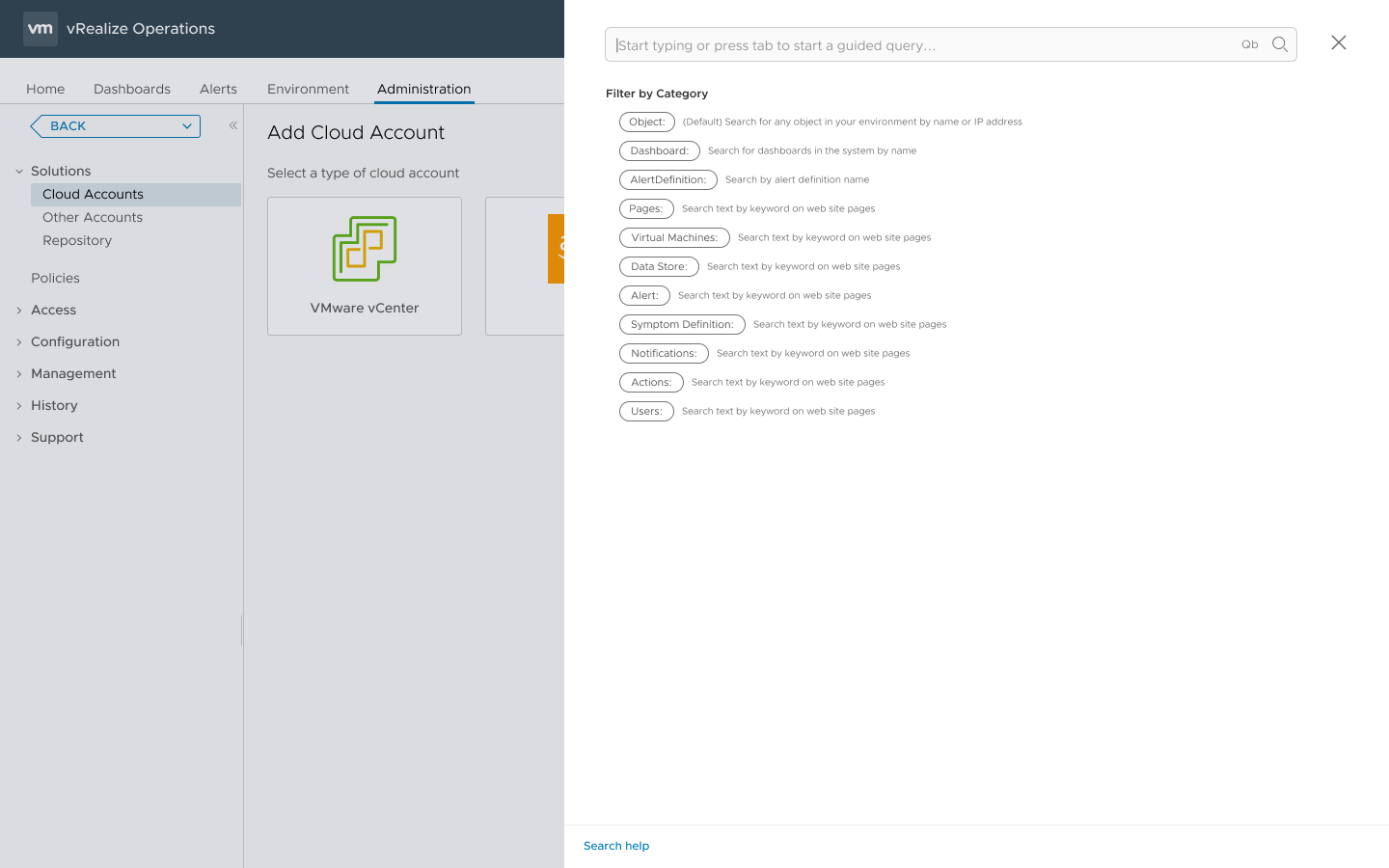
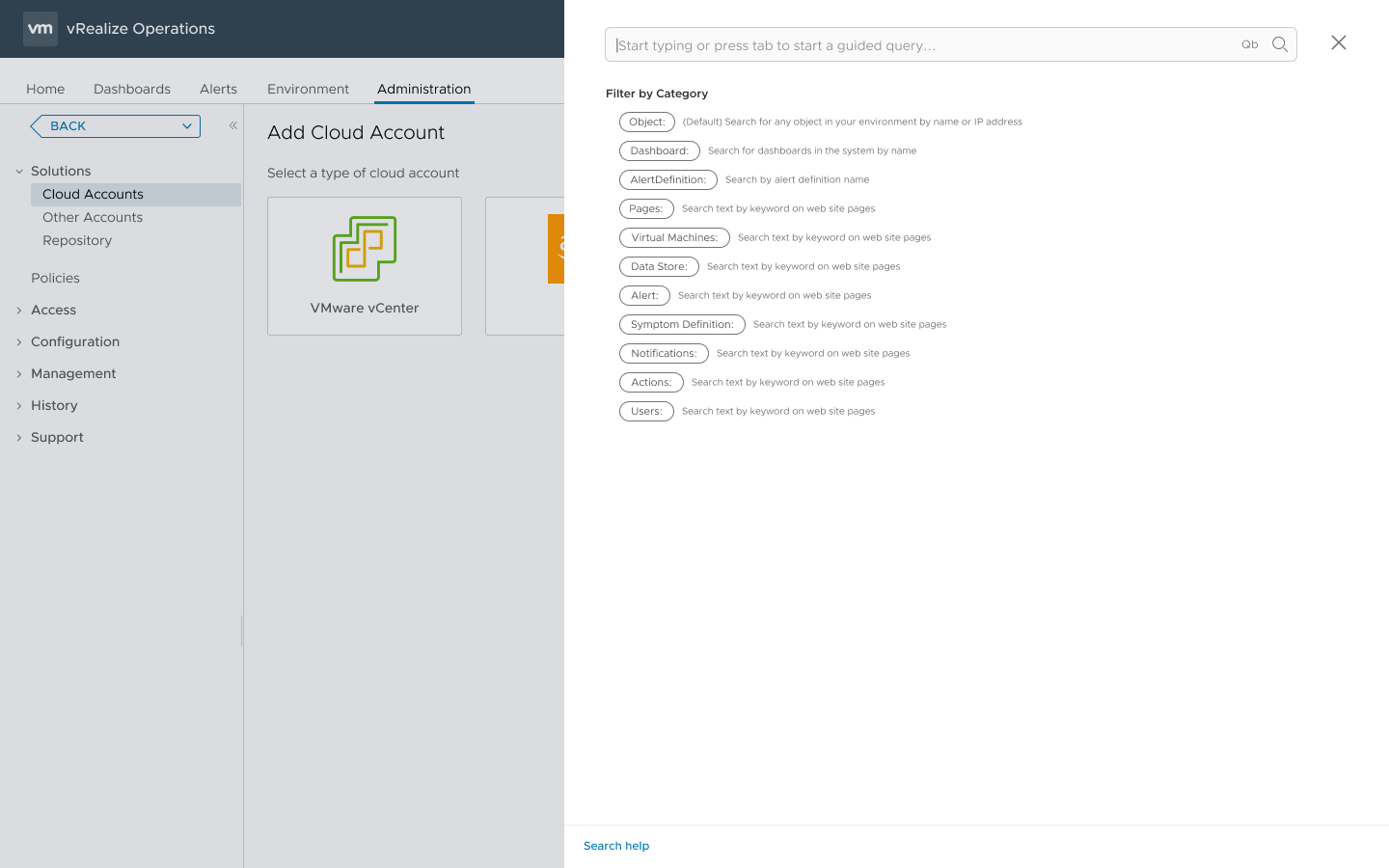
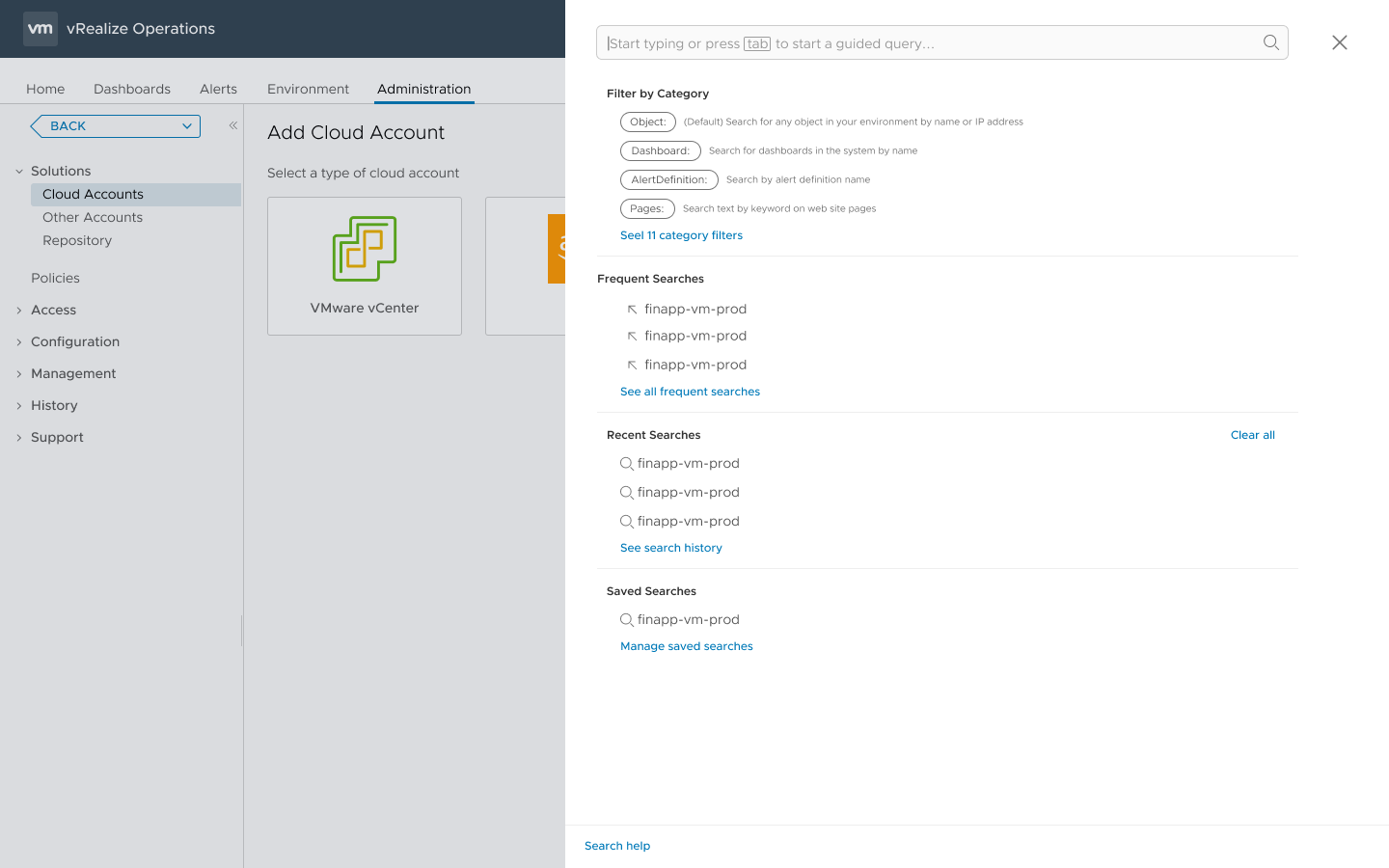
For a first-time user, an empty field provides little indication of what the platform can search. I designed an initial state with searchable categories, short explanations, and a prompt to type or press Tab to begin a guided query.
The category list exposes the search scope, including objects, dashboards, alert definitions, and pages. Search help remains available within the panel.
Suggestions That
Follow the Query
Suggestions change with the query context. After choosing Virtual Machines and entering CPU, the panel offers relevant metric names such as CPU allocation, demand, and utilization.
This makes the next part of the query visible at the point where it is needed. The user can select a recognised term instead of having to remember its exact name.
Building a
Structured Query
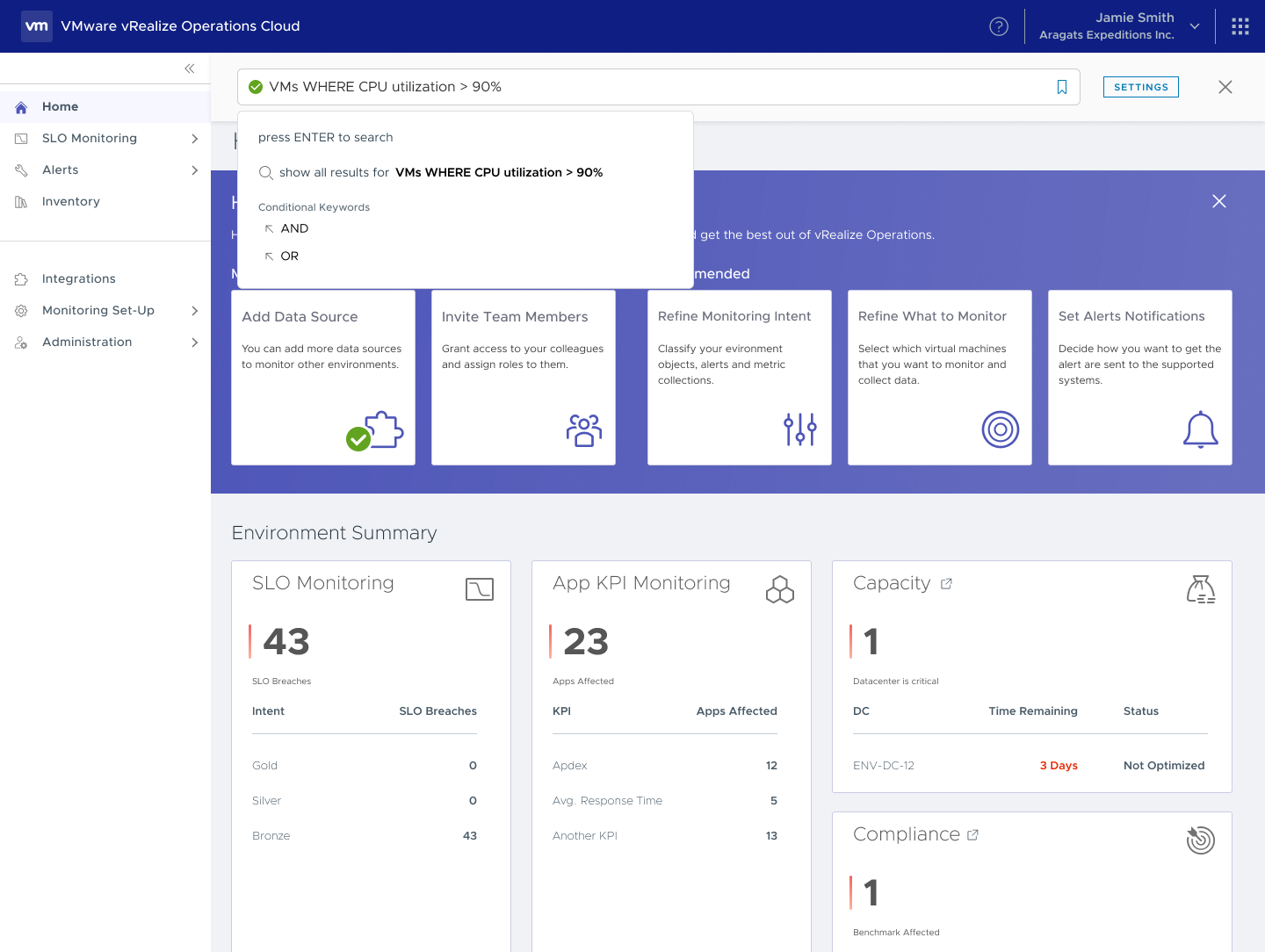
I designed the query builder around a clear sequence: object type → metric → comparison → value. A representative task is finding virtual machines where CPU utilization is above 90%.
The sequence below shows how the interface supports each decision, then offers the choice to run the search or add another condition.
1. Choose a comparison
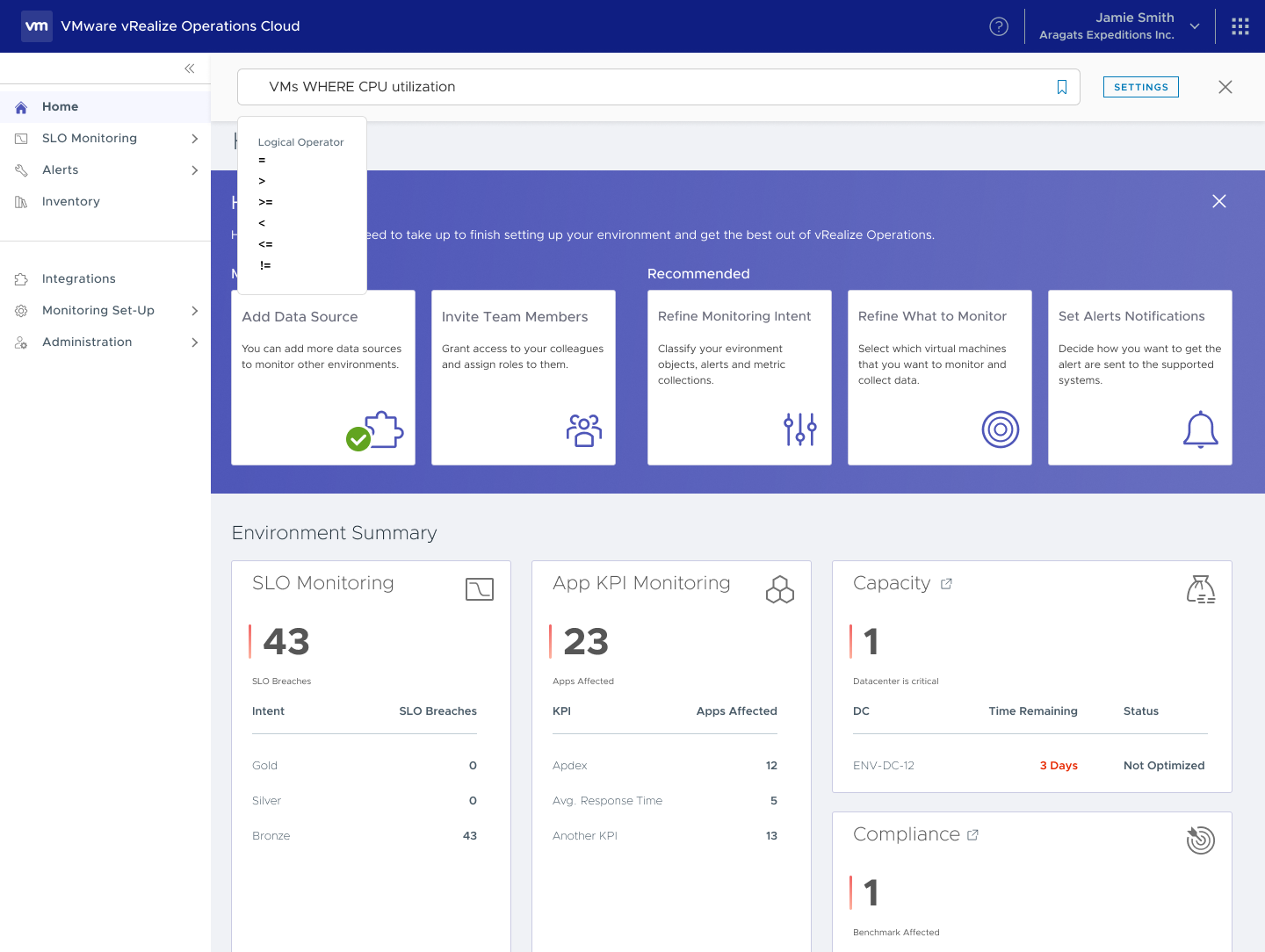
2. Enter a threshold
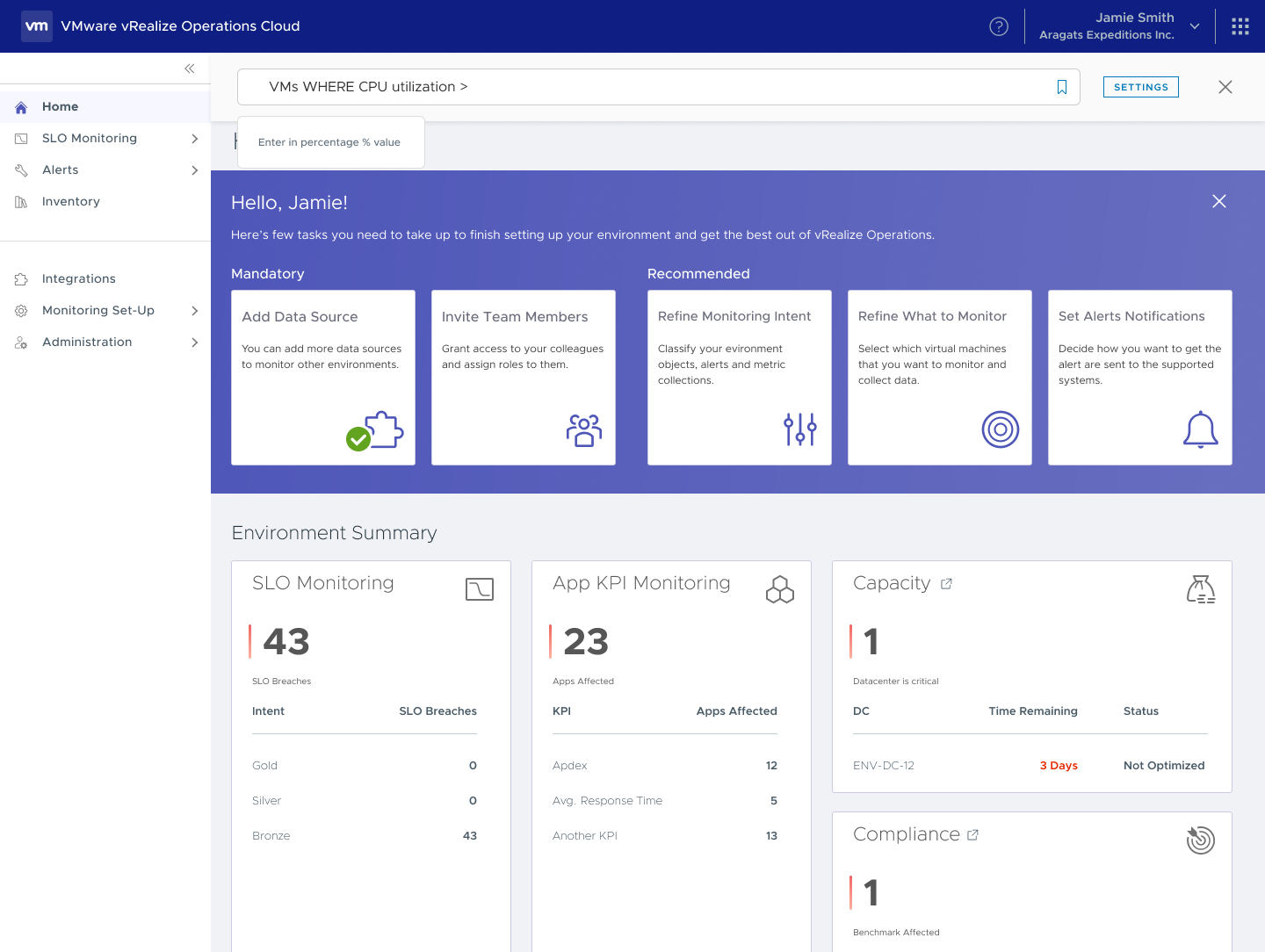
3. Search or extend the query
Filters and
Object Lists
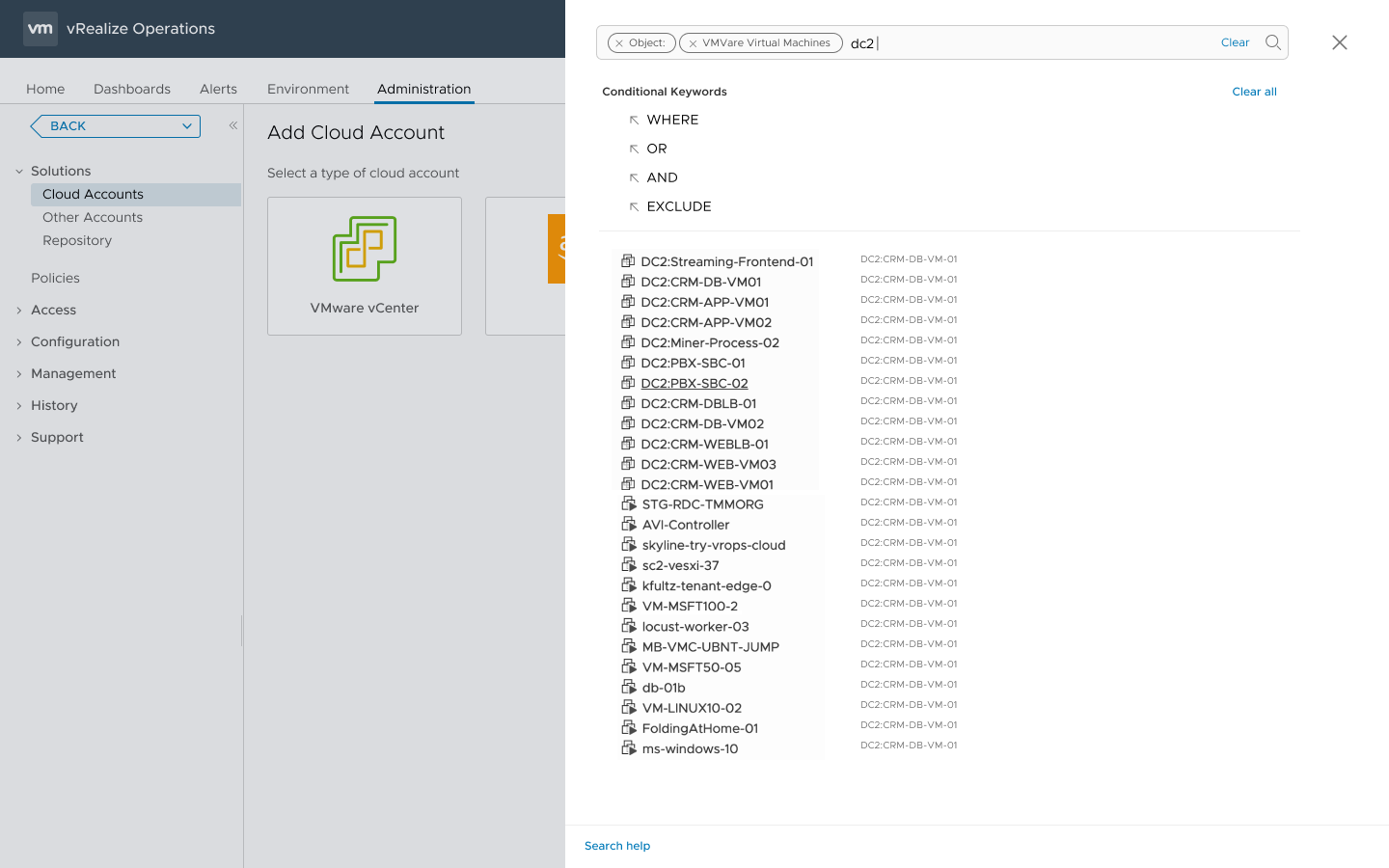
The source explorations include both filters-to-query and query-to-filters directions. I considered how choosing an object type and entering text could narrow a list while keeping the search scope visible.
In the list state, object matches appear alongside conditional keywords. This keeps direct object selection and further query refinement available within the same search surface.
Handling
Complex Queries
Technical searches may need multiple conditions. The requirements included combining naming patterns while excluding unwanted matches; the designs explore conditional keywords such as AND, OR, and EXCLUDE.
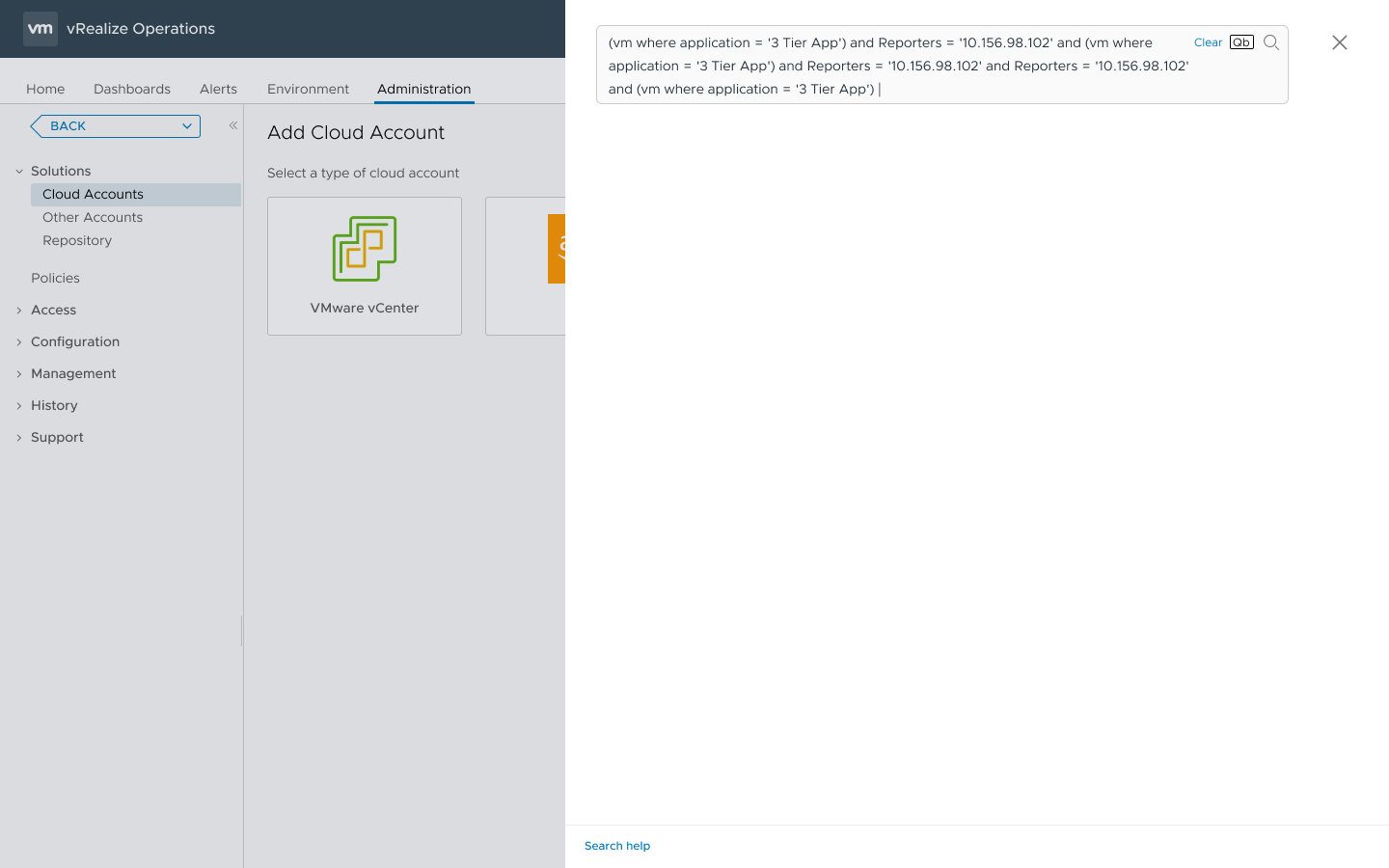
I also explored a very long query state. Multi-line query space keeps a longer expression visible for inspection and editing, while Clear and Search help remain accessible.
Long-query exploration
From Query
to Investigation
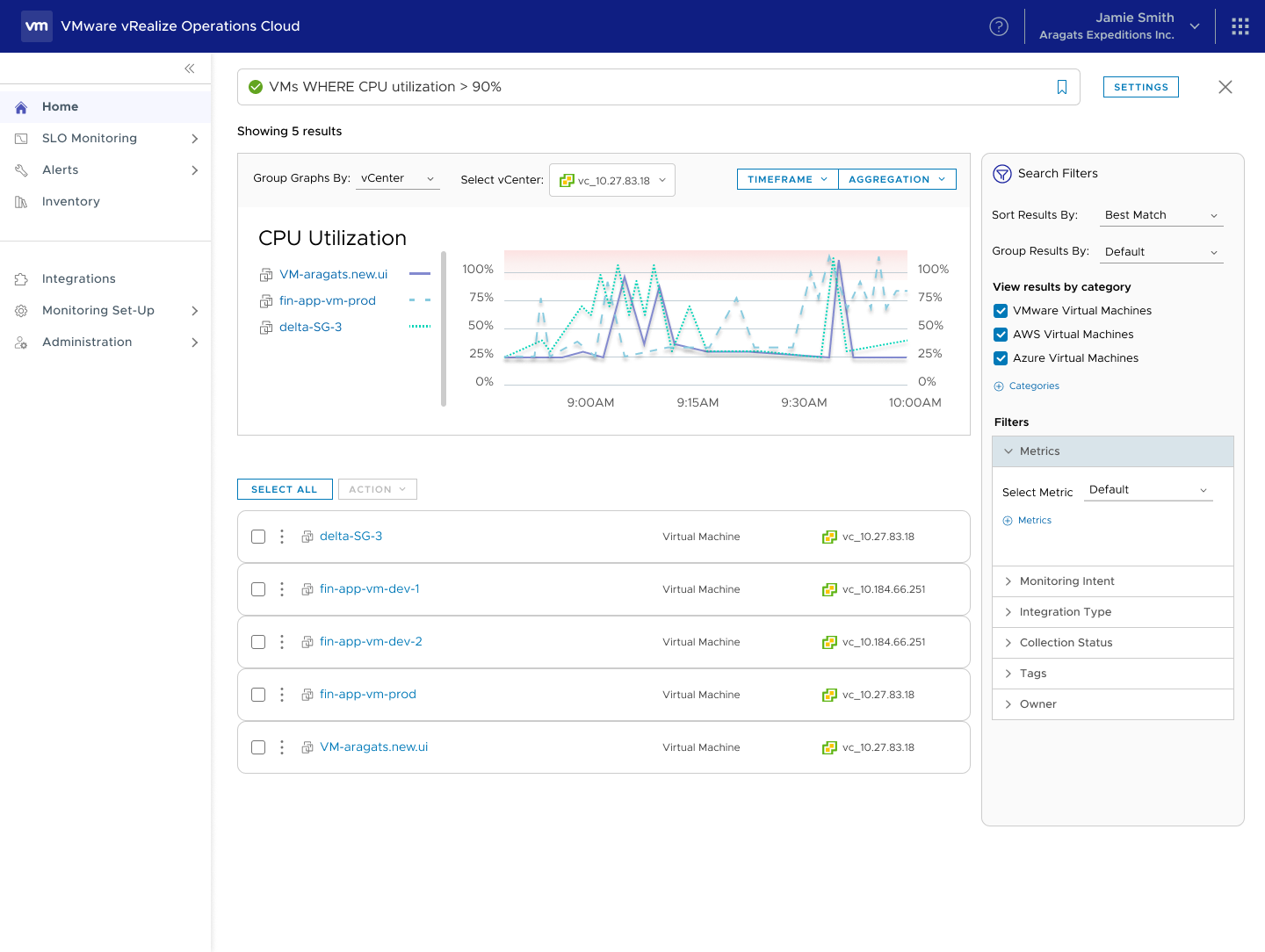
The results view keeps the active expression visible and combines matching objects with metric information. In the CPU utilization example, users can inspect the returned virtual machines, review a chart, and use the filtering panel to refine the result set.
This connects the search condition to the information needed for investigation, rather than ending the experience at a list of names.
Returning to
Previous Searches
The search panel also includes frequent, recent, and saved searches. These entry points support repeated investigations and provide examples of queries the user can reuse.
I explored saving a query with a recognisable name, so a complex expression could become a reusable starting point.
Design Outcome
The work produced a set of search flows and interface states covering first-time use, contextual suggestions, guided query construction, object lists, compound conditions, long queries, results, and reuse.
The central design idea was progressive guidance: help users construct a precise search one decision at a time, while retaining the flexibility needed for complex technical tasks.